
Install IPTV on Amazon Fire TV Stick
Learn how to install IPTV on your Amazon Fire TV Stick with this simple step-by-step guide. Follow easy instructions to set up Bomba TV IPTV and start watching live TV, movies, and series in high quality with fast and stable streaming. This beginner-friendly guide works on all Firestick models and helps you get started in minutes.
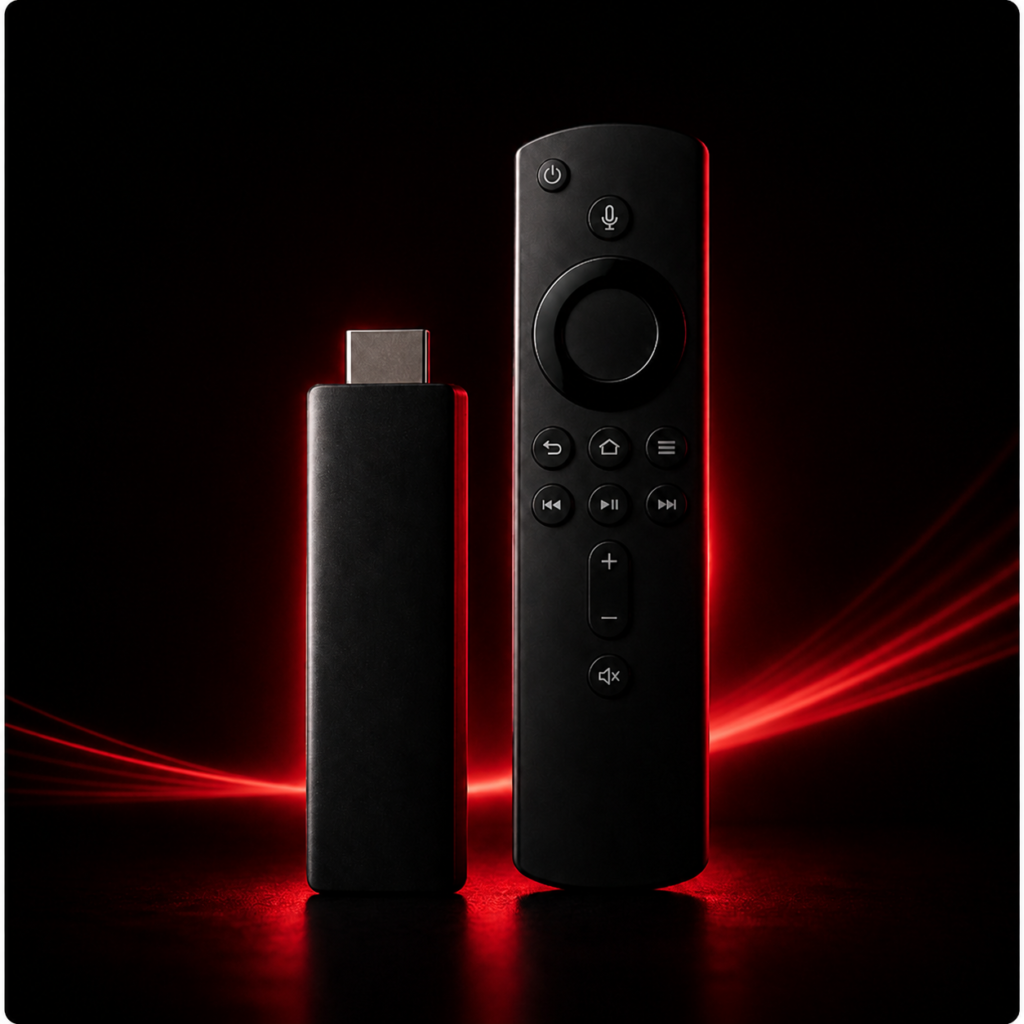
How to Install Bomba TV on Amazon FireStick
Before You Begin
Since IPTV Smarters Pro is not available on the Amazon App Store, you’ll need to sideload it onto your FireStick. The first step is enabling installations from unknown sources.
Enable Unknown Sources
Go to your FireStick home screen and open Settings from the top menu bar. Select My Fire TV, then tap Developer Options. Find Apps from Unknown Sources and toggle it On. When the warning prompt appears, confirm by clicking Turn On.
Part 1 — Install the Downloader App
The Downloader app is required to install IPTV Smarters Pro on your FireStick since direct browser downloads are not supported.
Step 1 — From the FireStick home screen, click the Search icon and type Downloader.
Step 2 — Select Downloader from the search results, then download and install the app.
Step 3 — Open Downloader. Dismiss any first-time prompts until you reach the home screen with a URL input field.
Part 2 — Download & Install IPTV Smarters Pro
Step 4 — In the Downloader URL field, enter the following and press Go:
6578878 (or the full URL: https://www.iptvsmarters.com/iptv-smarters-4.0.6.apk)
Step 5 — Wait for the APK file to finish downloading — this usually takes one to two minutes.
Step 6 — Once downloaded, the installer will launch automatically. Click Install to begin.
Step 7 — When installation is complete, you’ll see an App Installed confirmation. Click Done (not Open) so you can delete the APK file first and free up storage space.
Step 8 — Back on the Downloader screen, click Delete, then confirm by clicking Delete again. Your storage is now clean.
Part 3 — Set Up Bomba TV Streams on IPTV Smarters Pro
Open the IPTV Smarters Pro app. Accept the Terms of Use on the first launch. You have two options to add your Bomba TV subscription:
Option A — Login with Xtream Codes API (Recommended)
This method is recommended because it enables the Catchup feature and loads EPG (TV Guide) automatically — no extra URL needed.
Step 1 — Tap Add User, then select Login with Xtream Codes API.
Step 2 — Fill in the following fields:
- Profile Name: Enter any name you like (e.g. Bomba TV)
- Username: Enter the username from your Bomba TV subscription
- Password: Enter your Bomba TV password
- Server URL: Enter the server URL provided in your welcome email
Tap Add User to continue.
Step 3 — Wait a few seconds while your channels and playlist load.
Step 4 — Tap the Live TV icon to browse your channels. Select a channel group, then choose a channel to start watching. Double-tap the small player window to go full screen.
Step 5 — To activate the TV Guide, tap Install EPG — it loads automatically with no URL required.
You’re All Set!
Your Bomba TV subscription is now fully configured on your Amazon FireStick. If you run into any issues or need your login credentials, visit our Contact page or check your welcome email for subscription details.

Facing Issues with the Setup?
If you run into any problems during the installation, contact our support team and we’ll help you get Bomba TV up and running quickly.